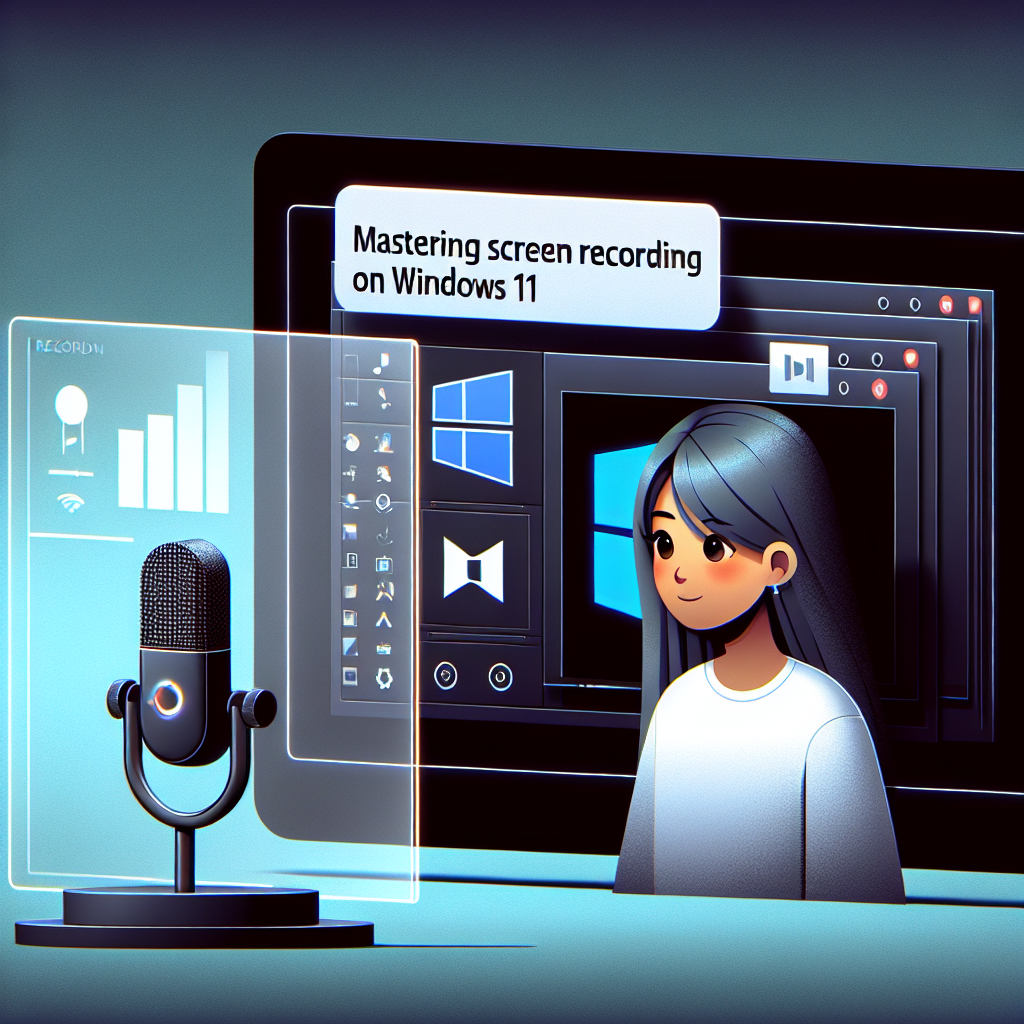
Mastering Screen Recording on Windows 11: A Complete Beginner’s Guide
Mastering Screen Recording on Windows 11: A Complete Beginner’s Guide
Are you looking to capture your screen on Windows 11? Whether it’s for streaming, tutorials, or gaming, mastering screen recording on Windows 11 is easier than you think. In this guide, we’ll walk you through the essential steps, tools, and tips to start recording like a pro.
Key Takeaways
- Windows 11 offers built-in screen recording options via Xbox Game Bar.
- Third-party software can elevate your recording quality and features.
- Optimal settings can greatly enhance your recording experience.
- Use screen recording for tutorials, streaming, and gaming captures.
Comparison of Screen Recording Options
| Tool | Features | Best For |
|---|---|---|
| Xbox Game Bar | Basic screen capture, audio recording | Gamers and simple tutorials |
| OBS Studio | Advanced recording options, live streaming | Professional content creators |
| Snagit | Screen capture editing, user-friendly interface | Corporate training and presentations |
Pros & Cons of Screen Recording Tools
Pros
- Easy to use interfaces
- Variety of features to match different needs
- Many free options available
Cons
- Some tools may have a learning curve (e.g., OBS Studio)
- Limited features in beginners’ tools like Xbox Game Bar
- Storage space can become an issue with high-quality recordings
Use Cases for Screen Recording on Windows 11
When it comes to screen recording, there are various practical applications:
- Tutorials: Educators and creators can record lessons or walkthroughs for viewers.
- Gaming: Capture gameplay moments and share your skills on platforms like Twitch or YouTube.
- Webinars: Record important meetings for later reference or sharing with others.
- Debugging: Developers can record bugs or issues for troubleshooting.
Step-by-Step Guide to Recording with Xbox Game Bar
- Press Windows + G to open Xbox Game Bar.
- Click on the Capture widget.
- Hit the Record button (or press Windows + Alt + R) to start recording.
- When finished, press Windows + Alt + R again to stop recording.
- Your recording will be saved in the Videos > Captures folder.
Example
For instance, if you’re a gamer looking to record a session of your latest playthrough, using the Xbox Game Bar is a fitting choice. It allows you to easily capture both gameplay and commentary without the need for additional setups. The gameplay can be recorded in 1080p at 60 FPS, which is ideal for sharing on gaming platforms.
Conclusion
In conclusion, mastering screen recording on Windows 11 opens up a world of possibilities, whether for personal use, gaming, or professional purposes. By leveraging built-in options like Xbox Game Bar or exploring third-party tools, you can create high-quality recordings effortlessly. Now, get started and share your screen captures with the world!
FAQs
How to start recording my screen on Windows 11?
You can start recording your screen on Windows 11 using the Xbox Game Bar by pressing Windows + G and then clicking the Record button in the Capture widget.
What if Xbox Game Bar isn’t working?
If Xbox Game Bar isn’t working, ensure it’s enabled via Settings > Gaming > Xbox Game Bar. You can also try restarting your computer.
Are there free screen recording tools for Windows 11?
Yes, tools like Xbox Game Bar, OBS Studio, and ShareX offer free screen recording options suitable for various needs.
Can I record audio with my screen recordings?
Absolutely! When using Xbox Game Bar, you can enable audio recording from your system or microphone to add commentary to your video.
Is there a time limit for recordings on Windows 11?
There isn’t a strict time limit when using the Xbox Game Bar. However, recording may stop if system resources are low or if you run out of storage space.
