

Accelerate ML Workload Delivery with the Code Editor in Amazon SageMaker Unified Studio
Amazon SageMaker Unified Studio is an all-in-one integrated development environment (IDE) that consolidates your analytical and AI data tools. As part of the next generation of Amazon SageMaker, it features integrated tools for constructing data pipelines, sharing datasets, overseeing data governance, conducting SQL analytics, developing artificial intelligence and machine learning (AI/ML) models, and crafting generative AI applications. AWS recently unveiled two new features that enhance the development experience for analytics and ML teams: Code Editor and multiple spaces. These IDE enhancements enable developers and data scientists to accelerate ML workload delivery by providing familiar IDE layouts, popular extensions for development enhancement, and essential debugging and testing functionalities, all within a cohesive environment.
Code Editor, built on Code-OSS (Visual Studio Code – Open Source), offers a lightweight yet robust IDE with familiar shortcuts and terminal access, along with advanced debugging and refactoring features. The VSCode IDE, along with Code-OSS variants like Code Editor, continues to be the most popular development tool in recent years. Teams can enhance their productivity by utilizing thousands of Code Editor-compatible extensions from the Open VSX extension gallery. The Code Editor IDE within SageMaker Unified Studio supports version control and cross-team collaboration via GitHub, GitLab, or Bitbucket repositories, while providing a preconfigured SageMaker distribution for key ML frameworks.
In SageMaker Unified Studio, a space refers to a work environment tailored to a specific IDE. To fully leverage Code Editor alongside other coding interfaces like JupyterLab, SageMaker now accommodates multiple spaces for each user per project. This allows users to effectively manage parallel workstreams with varying computational requirements. Each space is inherently linked to a single application instance, allowing users to seamlessly organize storage and resource needs. This upgrade provides the flexibility to access numerous applications and instances simultaneously, enhancing workflow management and productivity.
This post guides you on utilizing the new Code Editor and multiple spaces functionality in SageMaker Unified Studio. The example solution demonstrates how to develop an ML pipeline that streamlines the standard end-to-end ML processes of building, training, evaluating, and optionally deploying an ML model.
Features of Code Editor in SageMaker Unified Studio
Code Editor presents a unique suite of features designed to boost the productivity of your ML team:
- Fully managed infrastructure – The Code Editor IDE operates on a fully managed infrastructure, with SageMaker ensuring that the instances are always up-to-date with the latest security patches and upgrades.
- Adjust resources easily – Code Editor allows for seamless adjustments to the underlying resources (e.g., instance type or EBS volume size) it operates on. This feature is advantageous for developers needing to run workloads with varying compute, memory, and storage demands.
- SageMaker provided images – Code Editor is pre-configured with the Amazon SageMaker Distribution as its default image, which includes the most widely used ML frameworks supported by SageMaker, along with the SageMaker Studio SDK, SageMaker Python SDK, Boto3, and other AWS and data science-specific libraries included. This setup considerably reduces the time required to configure your environment and simplifies managing package dependencies in your ML projects.
- Amazon Q Developer – Code Editor incorporates generative AI capabilities powered by Amazon Q Developer. Increase your productivity with inline code suggestions within the IDE. Furthermore, you can utilize Amazon Q chat for queries about AWS development and receive assistance with software development. Amazon Q can clarify coding concepts and snippets, generate code and unit tests, and enhance code, including debugging or refactoring tasks.
- Extensions and configuration preferences – Code Editor ensures persistence of installed extensions and configuration settings.
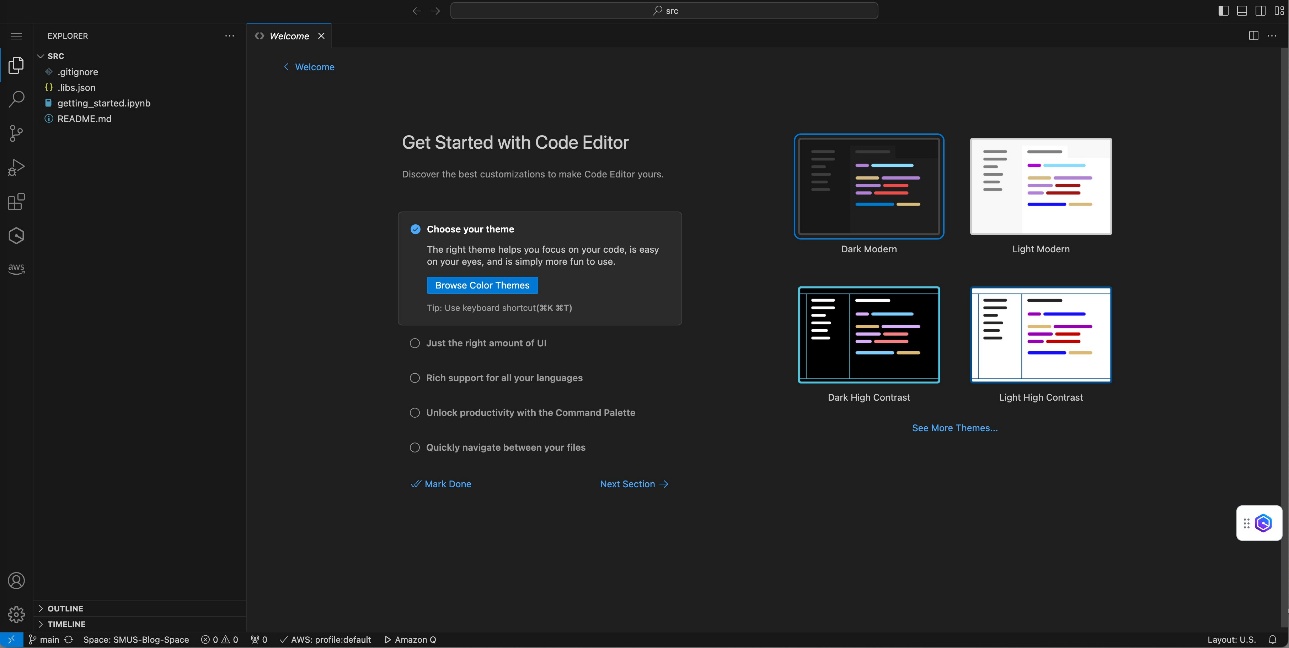
Upon opening Code Editor, you will observe that the space is initialized with the current state of your project’s repository. Navigate to the file explorer, and you will encounter a getting_started.ipynb Jupyter notebook, as depicted in the screenshot below.
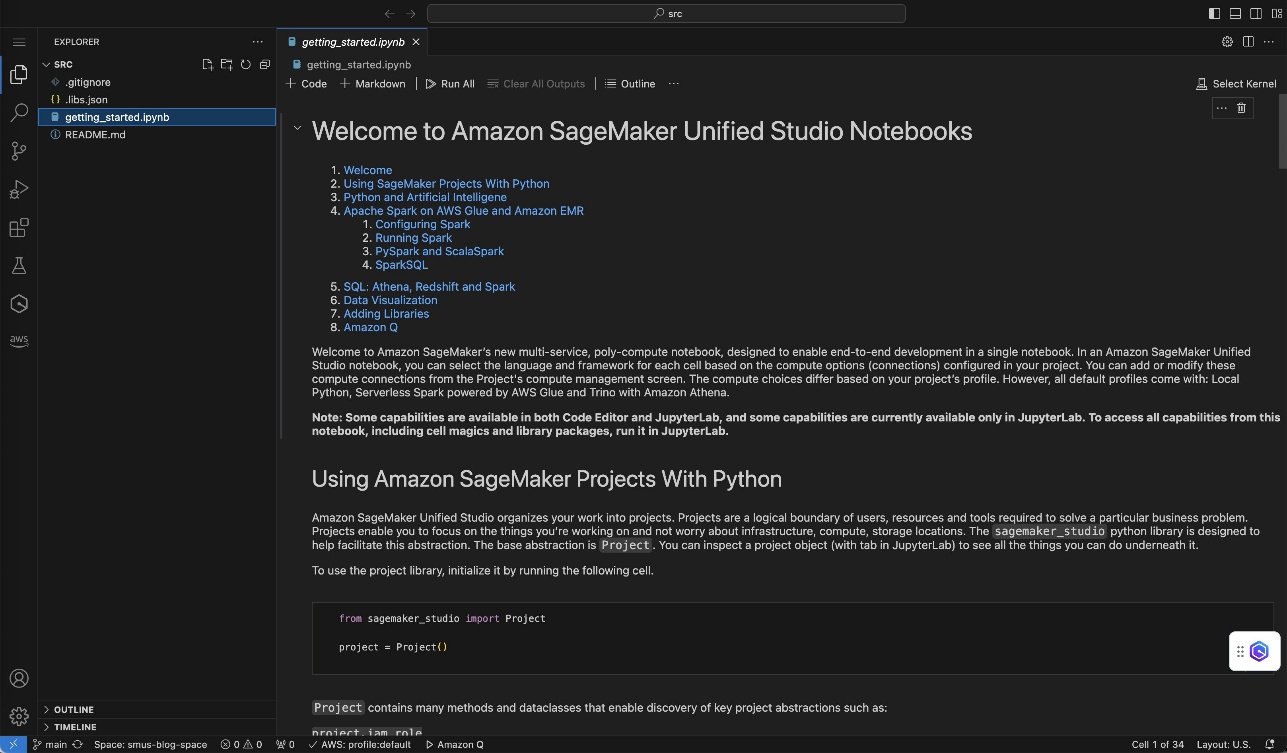
You can select Run All to execute this notebook. When prompted to choose the kernel, select Python Environments and then opt for the recommended Python environment named base. Now the getting_started notebook will run, allowing you to investigate the output of the various cells.
Architecture of Code Editor in SageMaker Unified Studio
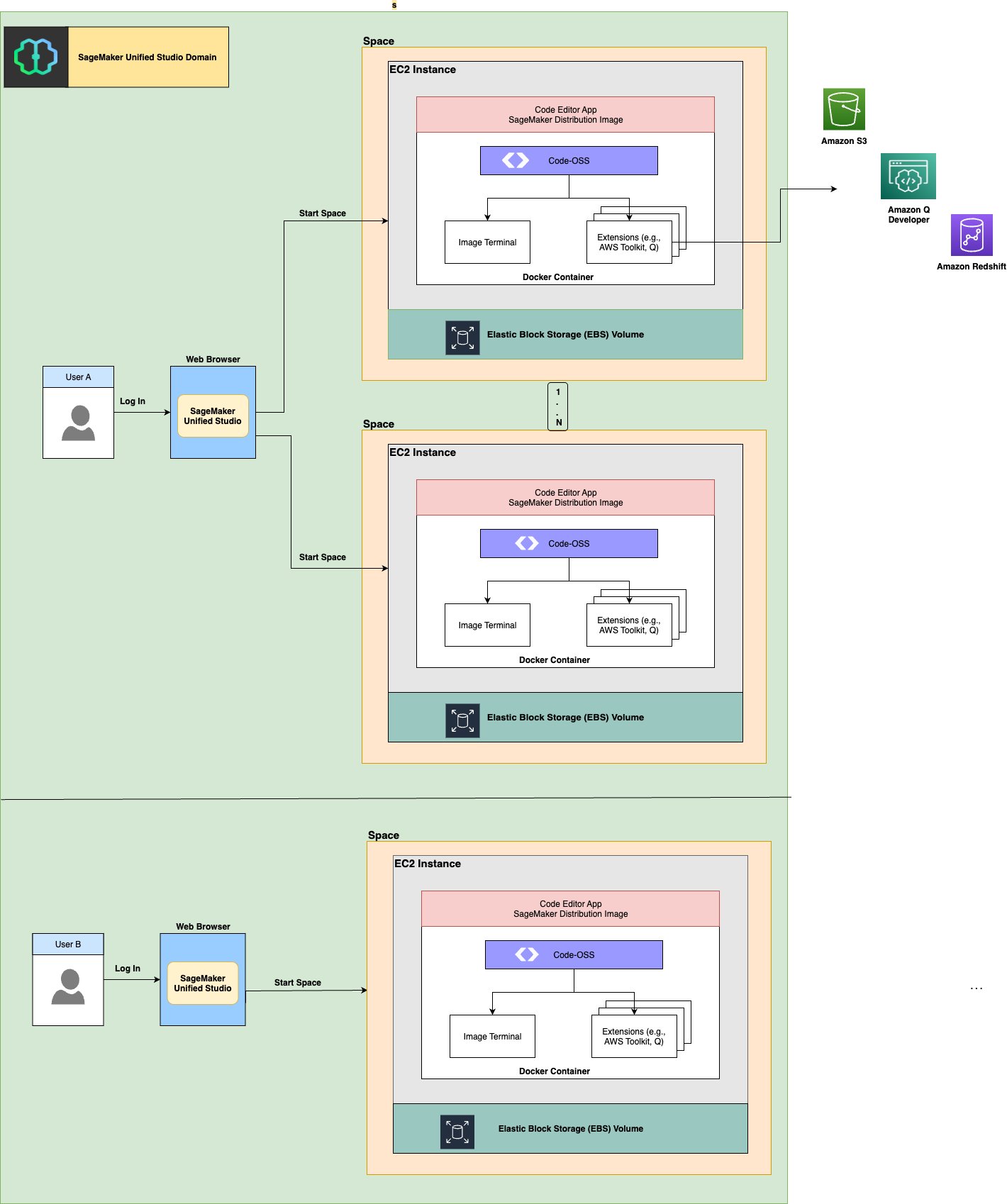
Upon invoking Code Editor in SageMaker Unified Studio, an application container is generated that runs on an Amazon Elastic Compute Cloud (Amazon EC2) instance. This instance type corresponds to your selection made during Code Editor space configuration. The management of underlying infrastructure is handled automatically within a service-managed account governed by SageMaker Unified Studio. The diagram below illustrates the infrastructure as it pertains to end-users and the provisioning of instances. User A has set up two spaces while User B utilizes a single space. Both users have the option to create additional spaces as needed, with existing spaces serving as isolated private environments and shared space functionality to be introduced in a future release.
SageMaker Unified Studio enables the creation of multiple spaces with either Code Editor or JupyterLab as the IDE, each customizable with differing ML instance types, including those with accelerated computing capabilities. For each space, you need to specify three essential components: the size of the EBS volume, the chosen instance type, and the type of application you wish to run (like Code Editor or JupyterLab). When you start a space, SageMaker Unified Studio automatically provisions a compute instance and launches a SageMaker Unified Studio Code Editor application using your designated container image. The storage system is built for durability: your EBS volume persists across sessions, even if you stop and restart the IDE. This means that when the Code Editor application is stopped to save on computing costs, the compute resources shut down while your EBS volume remains intact. Upon restart, the system automatically reattaches this volume to ensure continuity in your work.
Solution overview
The subsequent sections demonstrate how to develop an ML project utilizing Code Editor on SageMaker Unified Studio. This example involves running a Jupyter notebook that constructs an ML pipeline using Amazon SageMaker Pipelines, automating the standard tasks of building, training, and (optionally) deploying a model.
In this context, Code Editor serves as a valuable tool for an ML engineering team that requires advanced IDE features to test and debug their code, create and execute a pipeline, and monitor the status within SageMaker Unified Studio.
Prerequisites
To effectively prepare your organization for utilizing the new Code Editor IDE and multiple spaces support in SageMaker Unified Studio, complete the following prerequisite steps:
- Create an AWS account.
- Configure AWS IAM Identity Center accordingly.
By default, authentication and authorization for a SageMaker Unified Studio domain are managed through IAM Identity Center, which can be configured only within a single AWS Region that must coincide with your SageMaker domain. For further details, see Setting up Amazon SageMaker Unified Studio.
- Create a SageMaker Unified Studio domain following the quick setup. A virtual private cloud (VPC) will be established for you during setup, if required.
- Once the domain is created, you can enable access to SageMaker Unified Studio for users with single sign-on (SSO) credentials via IAM Identity Center by selecting Configure next to Configure SSO user access in the Next steps for your domain section.
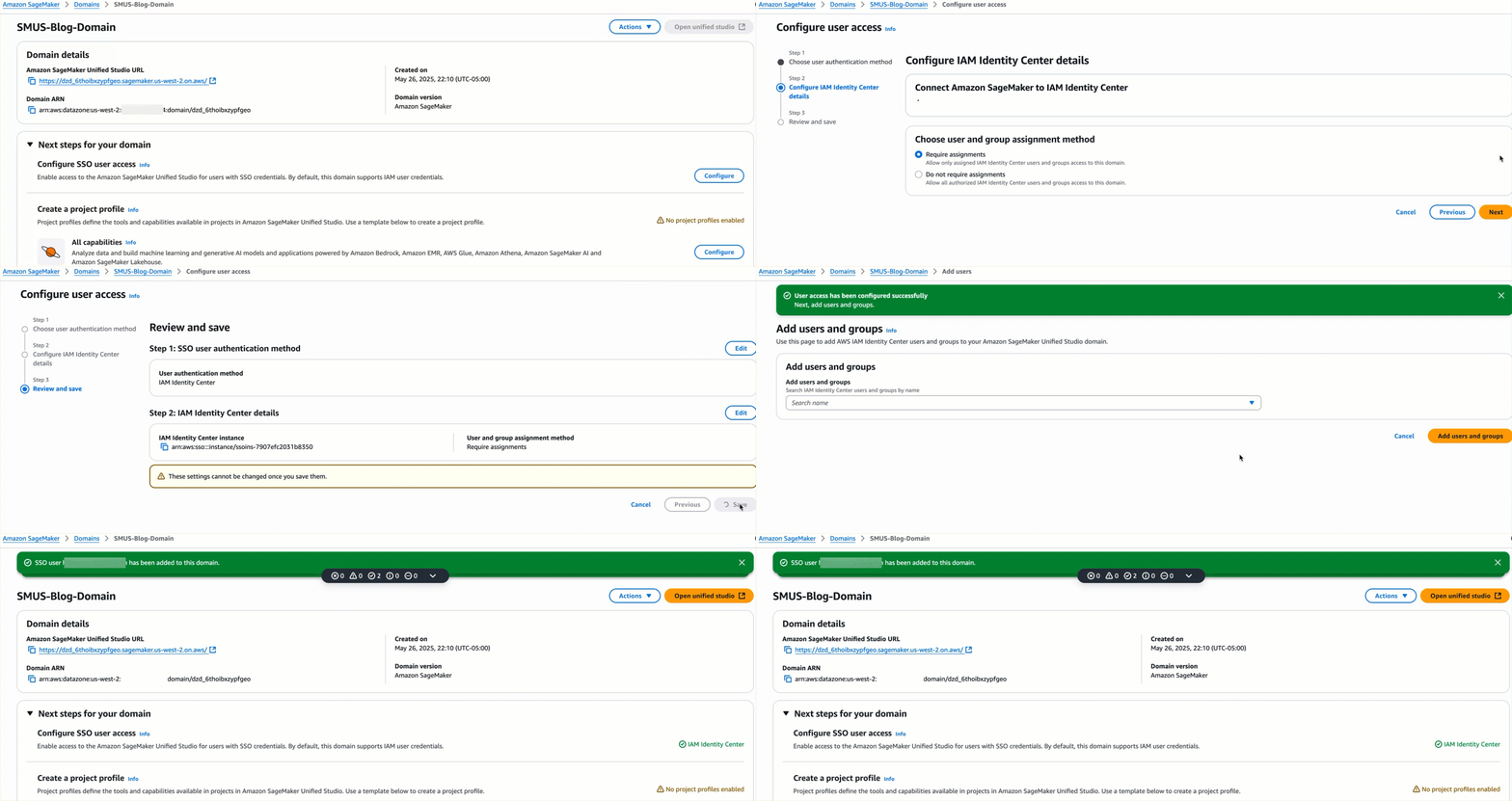
- After configuring user access for your newly created domain, navigate to the SageMaker Unified Studio URL and log in using SSO credentials.
You can find the URL on the SageMaker console, as depicted in the screenshot below.

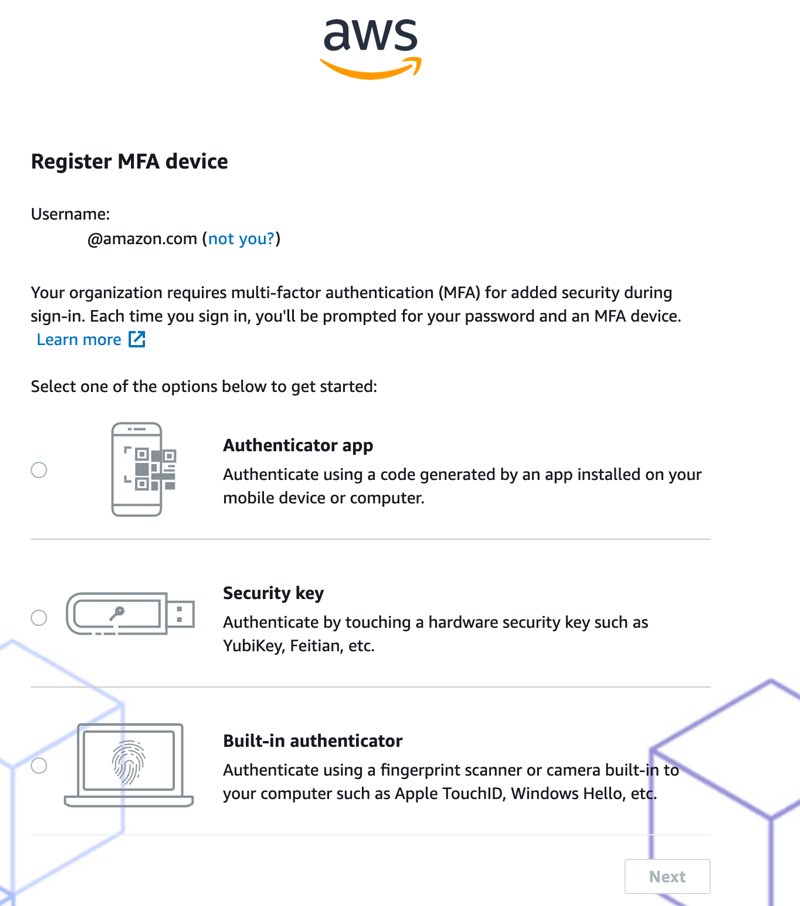
By default, IAM Identity Center mandates multi-factor authentication on user accounts, and you may need to configure this upon your initial login to SageMaker Unified Studio, as indicated in the screenshot below. For more information about this requirement, refer to Registering your device for MFA.
- After logging in, select Create Project and follow the prompts to set up your first SageMaker Unified Studio project, opting for the All Capabilities project profile during the setup.
We simplify some concepts related to project profiles in this post for clarity. For more insights, refer to Project profiles in Amazon SageMaker Unified Studio.
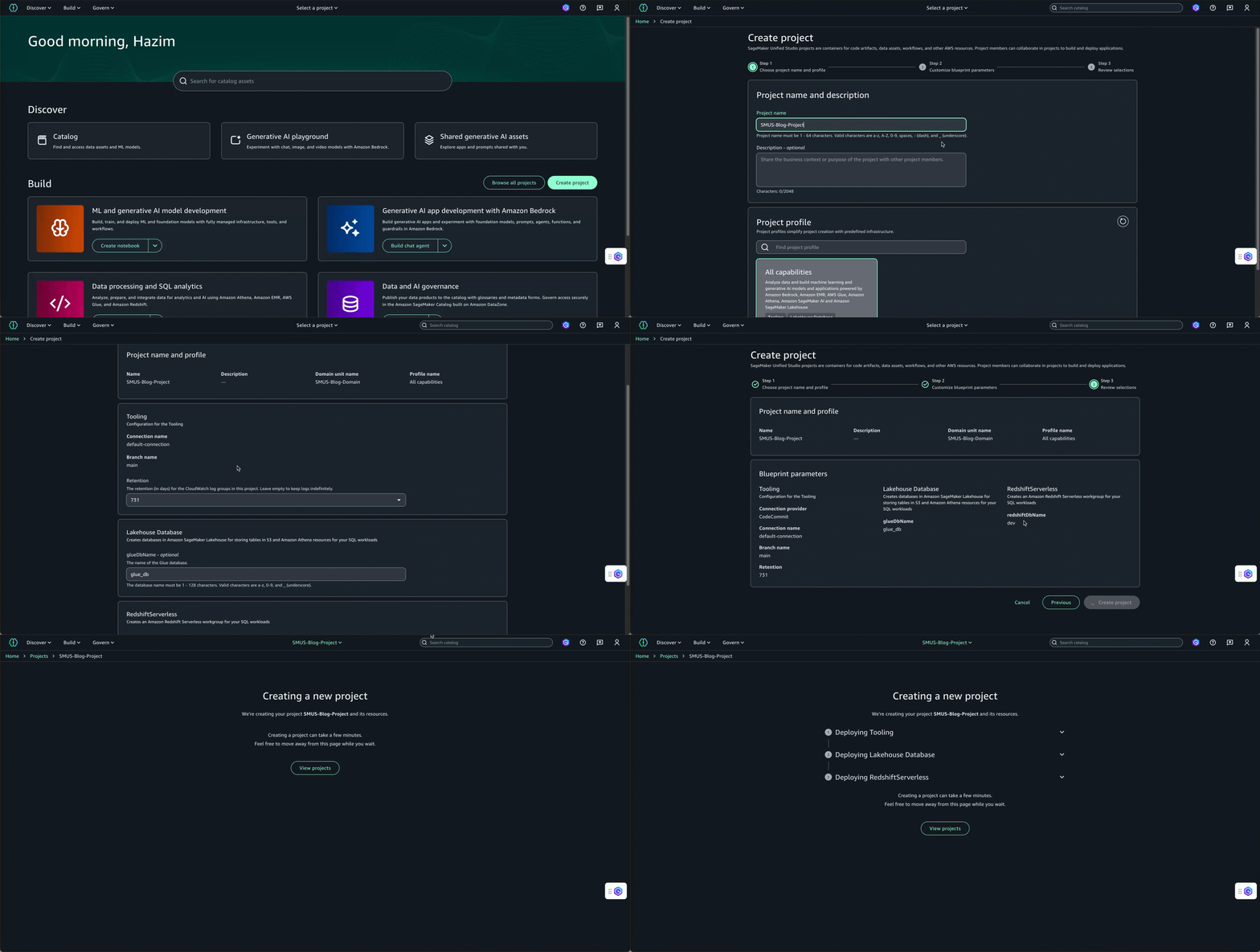
After creating a project, you can establish your space (an IDE) where Code Editor will be set up.
- In the Compute tab of the project, click on Create Space, then enter a name and select Code Editor.
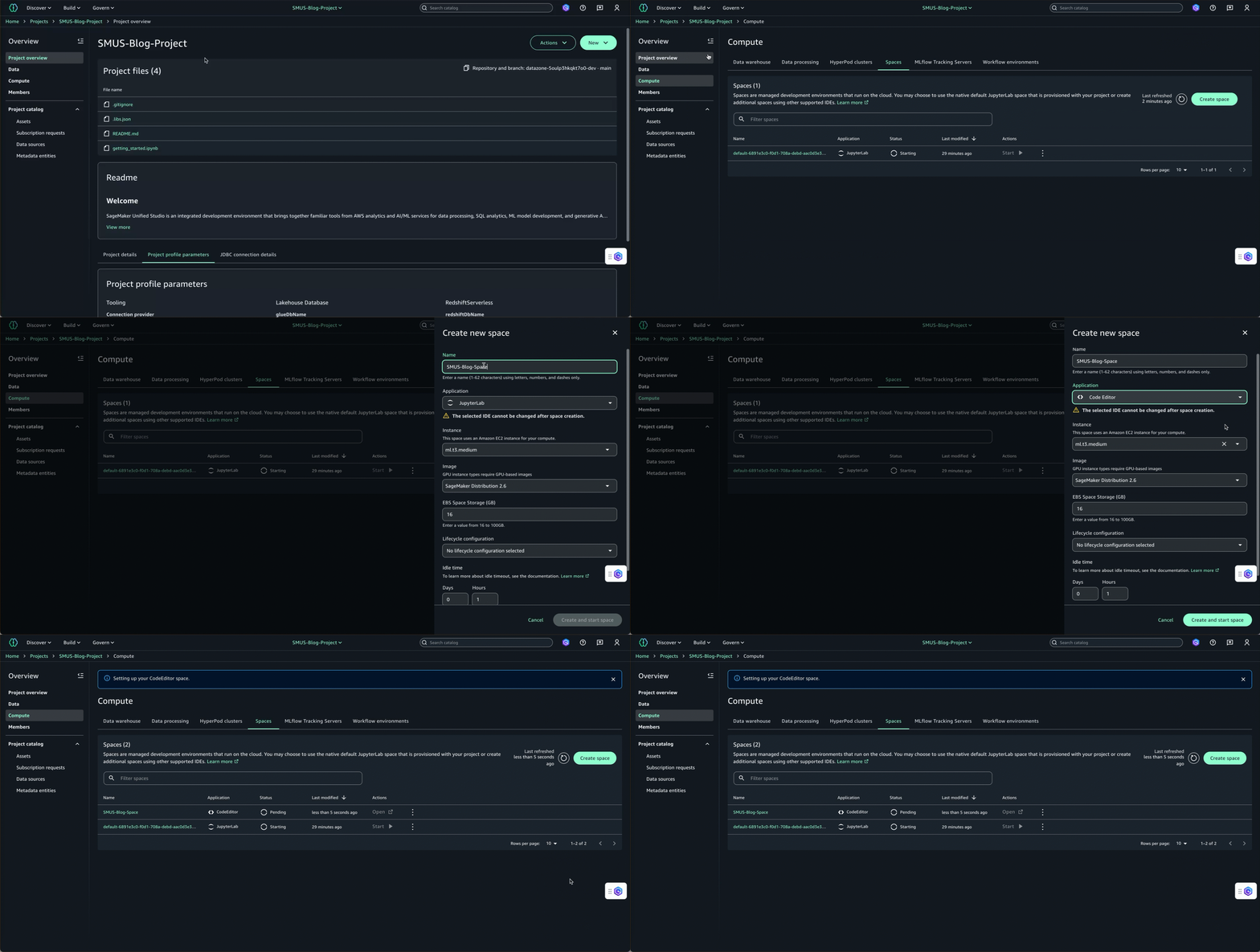
- When the Status column indicates that the space is Running, enter the space to be redirected to Code Editor.
Interacting with AWS services directly from your IDE
Out of the box, Code Editor is equipped with the AWS Toolkit for Visual Studio Code, granting you an integrated experience with other AWS services during your project—such as accessing data in your Amazon Simple Storage Service (Amazon S3) buckets, locating container images in Amazon Container Registry (Amazon ECR), or visualizing Amazon CloudWatch logs for your SageMaker environment.
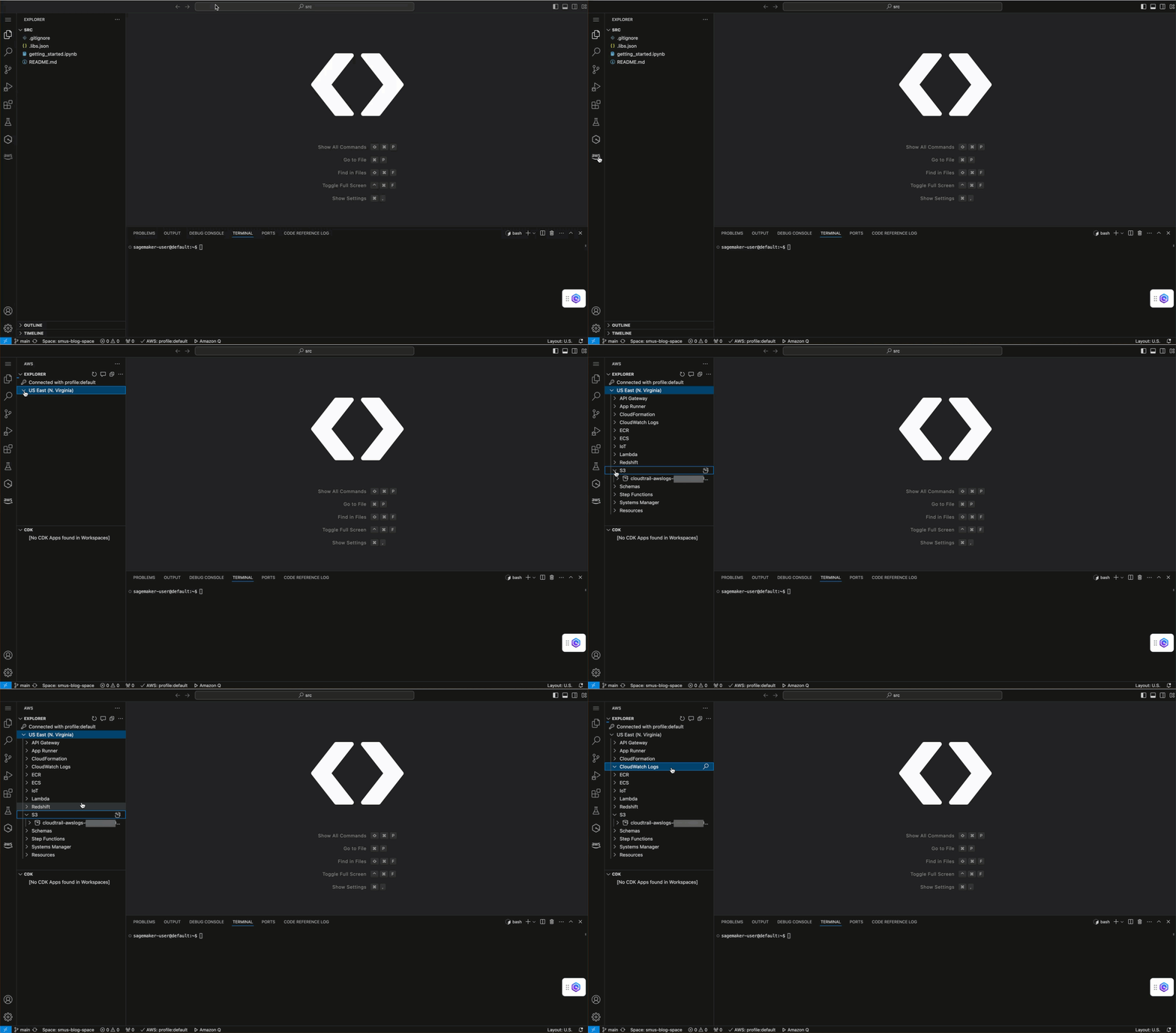
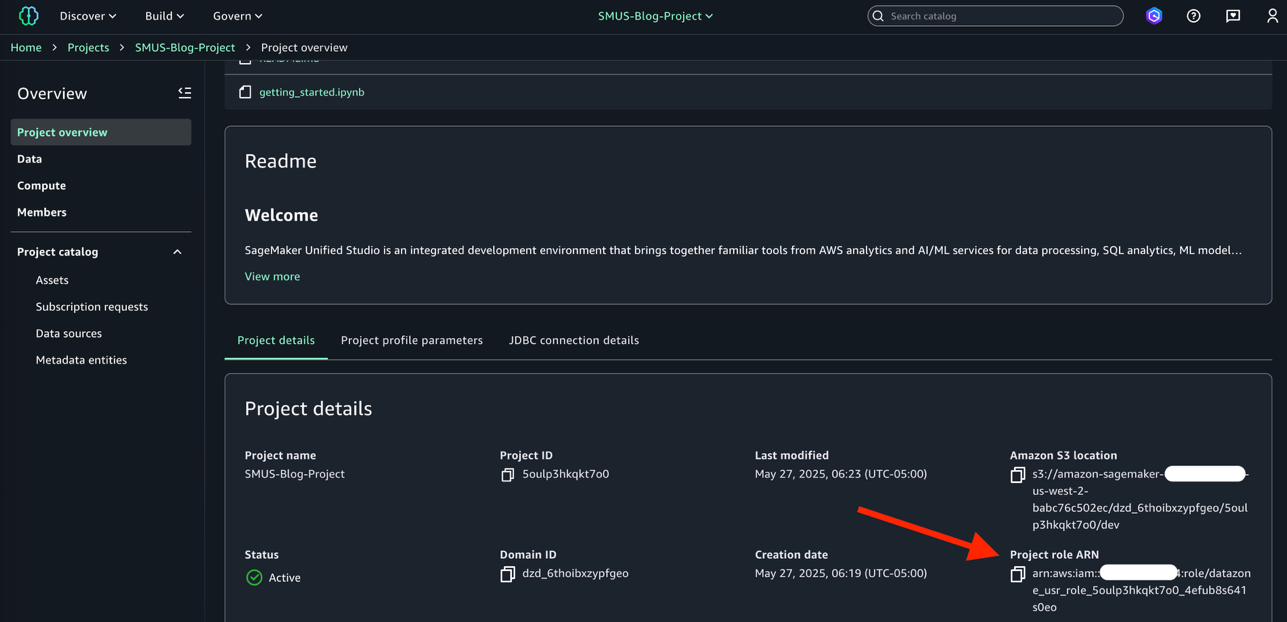
The AWS Toolkit for Visual Studio Code operates using the permissions of the AWS Identity and Access Management (IAM) role assigned to the project. You can locate the Amazon Resource Name (ARN) of the project role on the project details page, as illustrated in the screenshot below.
Using Code Editor to Create and Execute an ML Pipeline in SageMaker
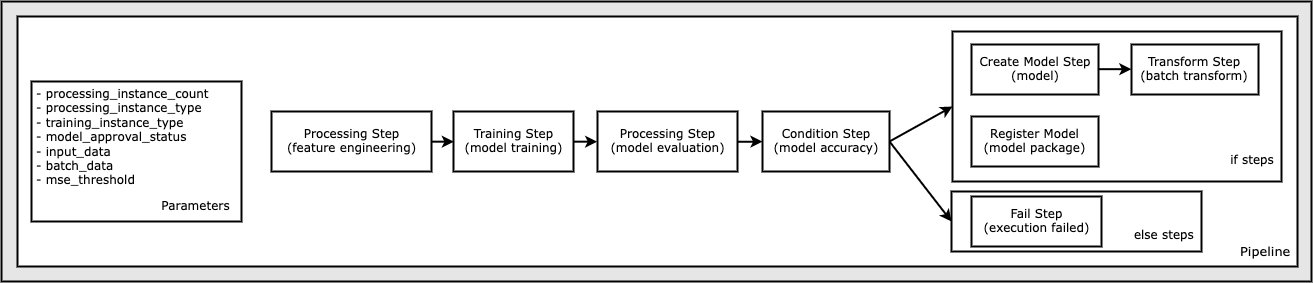
This section details how to upload and execute a Jupyter notebook that initiates a machine learning operations (MLOps) pipeline orchestrated with SageMaker Pipelines. The pipeline follows a typical ML application pattern: data preprocessing, training, evaluation, model creation, transformation, and model registration, as depicted in the diagram below.
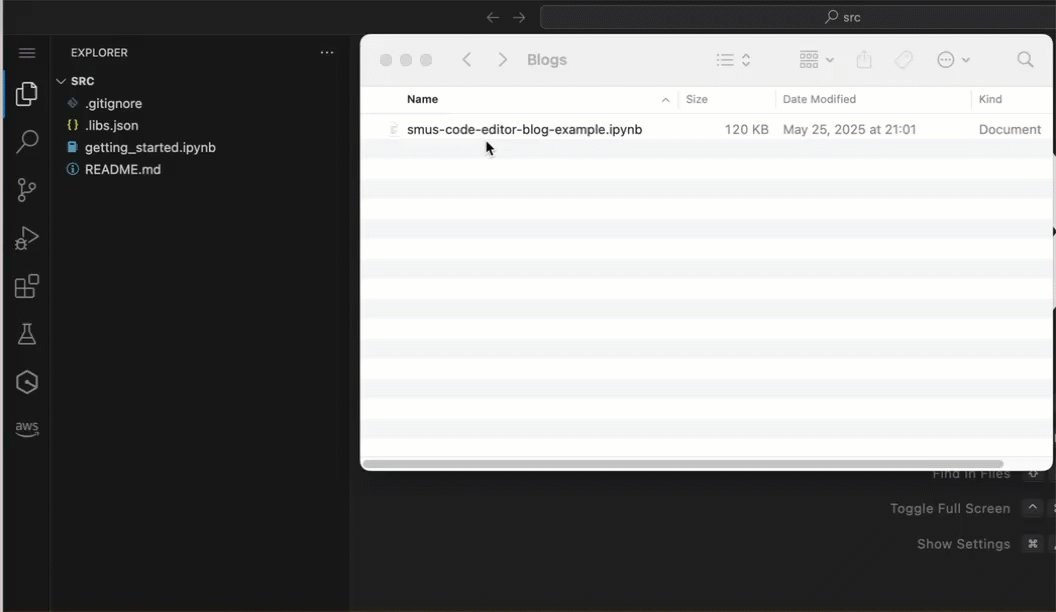
Start by uploading the sample notebook directly into Code Editor. You can drag and drop the notebook or right-click and choose Upload in the file explorer pane.
You can download and execute sample notebooks using standard Git clone commands from the corresponding GitHub repository. Executing the Full Pipeline notebook sample necessitates additional IAM role permissions beyond the defaults assigned when creating the SageMaker Unified Studio project. The Quick Pipeline can be run as-is without requiring additional IAM permissions.
Region Availability, Cost, and Limitations
Code Editor and multiple spaces support are accessible in compatible SageMaker Unified Studio domains. For detailed information on Regions supporting these features, see Regions where Amazon SageMaker Unified Studio is supported. Code Editor will be provisioned in a SageMaker space and run on a user-selectable instance type, ranging from low-cost instances (ml.t3.medium) to high-performance GPU-based instances (G6 instance family).
The main cost associated with a Code Editor space directly correlates with the underlying compute instance type. Hourly costs for ML instance types can be found on the Amazon SageMaker AI pricing page under the Instance details tab. To avoid unnecessary charges, the space will automatically shut down after a configurable timeout when idle (refer to SpaceIdleSettings). Minimal charges may also apply for the storage of the EBS volume linked to the Code Editor space.
Upon launch, Code Editor spaces can be configured to utilize a specific SageMaker Distribution image, either version 2.6 or 3.1. Further major and minor releases of the SageMaker Distribution will be introduced over time.
Clean Up
To prevent incurring additional charges, delete the resources created throughout this post. This includes any development environments established, such as Code Editor or JupyterLab spaces, which can be removed by navigating to the Project Compute navigation pane, selecting the Spaces tab, clicking the options menu (three vertical dots) next to the space, and choosing Delete. You can eliminate project resources by deleting the project from the SageMaker Unified Studio console. Although there is no charge for a SageMaker Unified Studio domain, you may opt to delete it from the SageMaker AI console. If you created IAM Identity Center users that are no longer needed, remove these users from the IAM Identity Center console.
Conclusion
The integration of the new Code Editor IDE into SageMaker Unified Studio offers a familiar workspace for countless data scientists and developers. With this powerful IDE, data scientists can accelerate the processes of building, training, tuning, and deploying their ML models, facilitating their progression into production for measurable ROI. With thousands of pre-validated extensions through the VSX Registry, developers will experience improved usability and efficiency while creating and deploying generative AI applications.
Moreover, SageMaker Unified Studio now supports multiple spaces per user per project. These new environmental options empower MLOps roles to segregate workloads, isolate compute resources, and increase productivity through parallel workstreams. All these enhancements collectively enable data science teams to operate more efficiently in deploying ML and generative AI solutions, allowing them to realize the benefits of their efforts.
To get started with SageMaker Unified Studio, check out the Amazon SageMaker Workshop. This workshop provides step-by-step instructions, along with sample datasets, source code, and Jupyter notebooks for gaining hands-on experience with the tools.
For additional information about Code Editor, refer to Using the Code Editor IDE in Amazon SageMaker Unified Studio.
About the authors
 Paul Hargis has concentrated his efforts on machine learning across companies, including AWS, Amazon, and Hortonworks. He enjoys crafting technology solutions and teaching users how to utilize them effectively. Paul is committed to helping customers expand their machine learning initiatives to tackle real-world issues. Prior to his role at AWS, he served as the lead architect for Amazon Exports and Expansions, enhancing the experience for international shoppers on amazon.com.
 Hazim Qudah is an AI/ML Specialist Solutions Architect at Amazon Web Services. He takes pleasure in assisting clients in adopting AI/ML solutions using AWS technologies and established best practices. Before his tenure at AWS, he spent several years consulting in technology for clients across various industries. In his leisure time, he enjoys running and spending time with his dogs!
 Jayan Kuttagupthan is a Senior Software Engineer at Amazon, boasting over 15 years of experience in backend development and design. He currently focuses on enhancing Seller Partner Support Experience at Amazon. As a technical leader, Jayan has successfully developed and mentored engineering teams across multiple organizations while contributing to the broader tech community via speaking engagements such as SRECon Asia.
 Majisha Namath Parambath is a Senior Software Engineer at Amazon SageMaker with over 9 years of service at Amazon. She has provided technical leadership on SageMaker Studio (both Classic and V2) and Studio Lab, and now spearheads key initiatives for the next-gen Amazon SageMaker Unified Studio, delivering a comprehensive data analytics and interactive machine learning experience. Her work encompasses system design, architecture, and cross-team execution, with an emphasis on security, performance, and reliability at scale. Outside of work, she enjoys reading, cooking, and skiing.
